 Overwave
Thousands of channels, built in
A bundled iptv-org catalogue of channels from around the world is ready the moment you open the app, and works offline from a cache.
Overwave is a native IPTV player with an EyeTV-inspired toolbar, a blue library sidebar and an integrated viewer. Search thousands of free channels, watch two at once, float the picture above your work, and keep your favorites, folders and playlists close.

Overwave keeps a familiar, tidy layout and adds the things live-TV viewers actually need: discovery, memory and control.
A bundled iptv-org catalogue of channels from around the world is ready the moment you open the app, and works offline from a cache.
Watch above the channel table with a draggable divider and playback controls beside the video. Hide the viewer for a full-height list.
Search names, countries, categories and languages, then narrow Discover by country, category and language. Results are paginated in groups of 100.
Watch two channels side by side, each with its own transport and volume. Select a viewer, then tune from the list below.
Pop the picture into a small window that stays above ordinary windows while you work, and return it to the viewer in one click.
Send video to AirPlay receivers, use Picture in Picture and full screen, or try the experimental Google Cast controller in Chrome.
Star channels, file them into folders and jump back through Recently Watched. Everything is saved on your Mac.
Bring in M3U or M3U8 playlists from a file or a web address. Imports are snapshots; import again to update them.
Type in the capsule search field and the table narrows to matching channels by name, country, category or language. Every row shows the channel's logo, country flag, category, best quality and how many feeds it has.
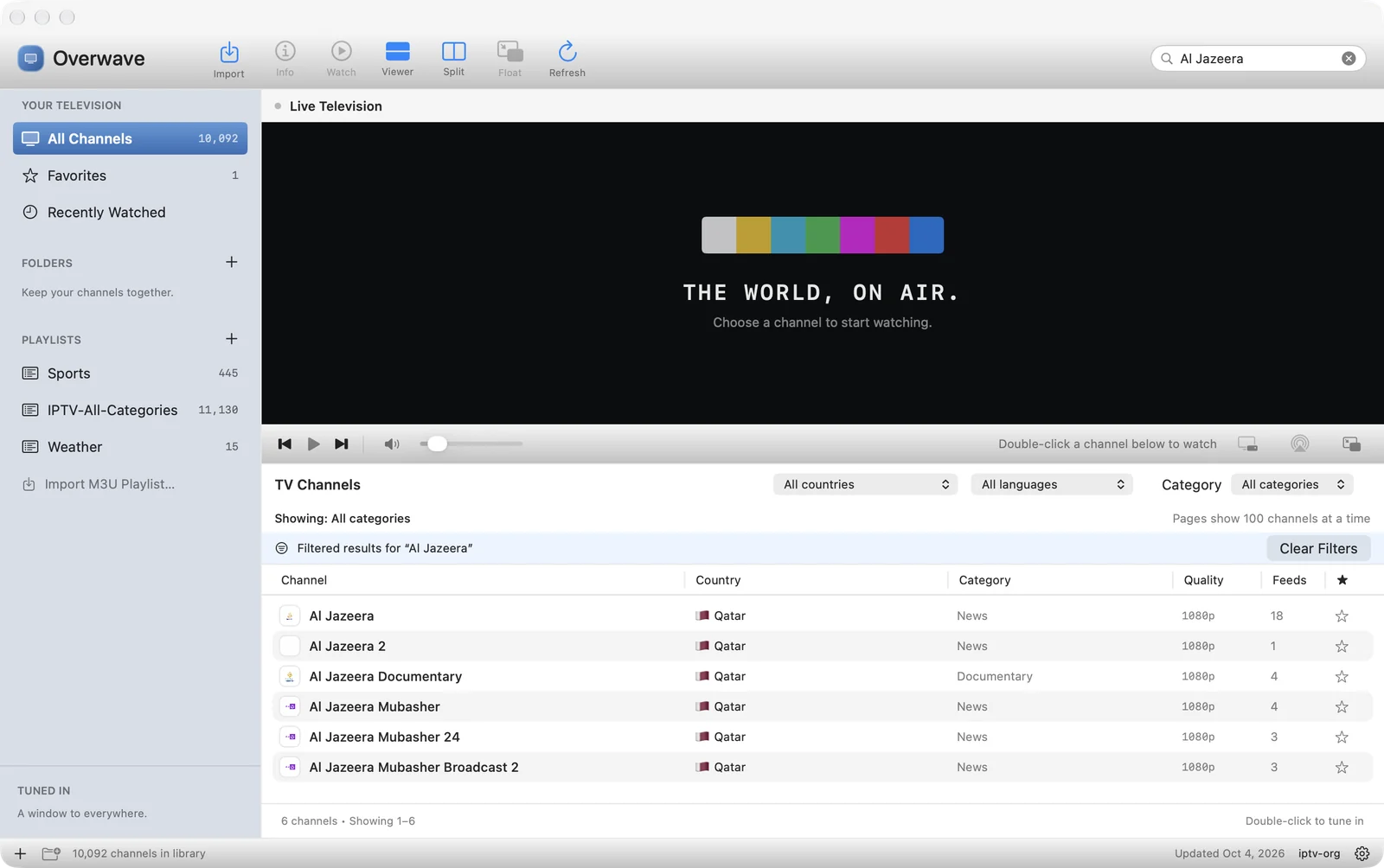
Pick a category from Animation and Business to Culture, Documentary, Kids, Music, News, Sports and more. Combine it with a country or language to get exactly the channels you want.
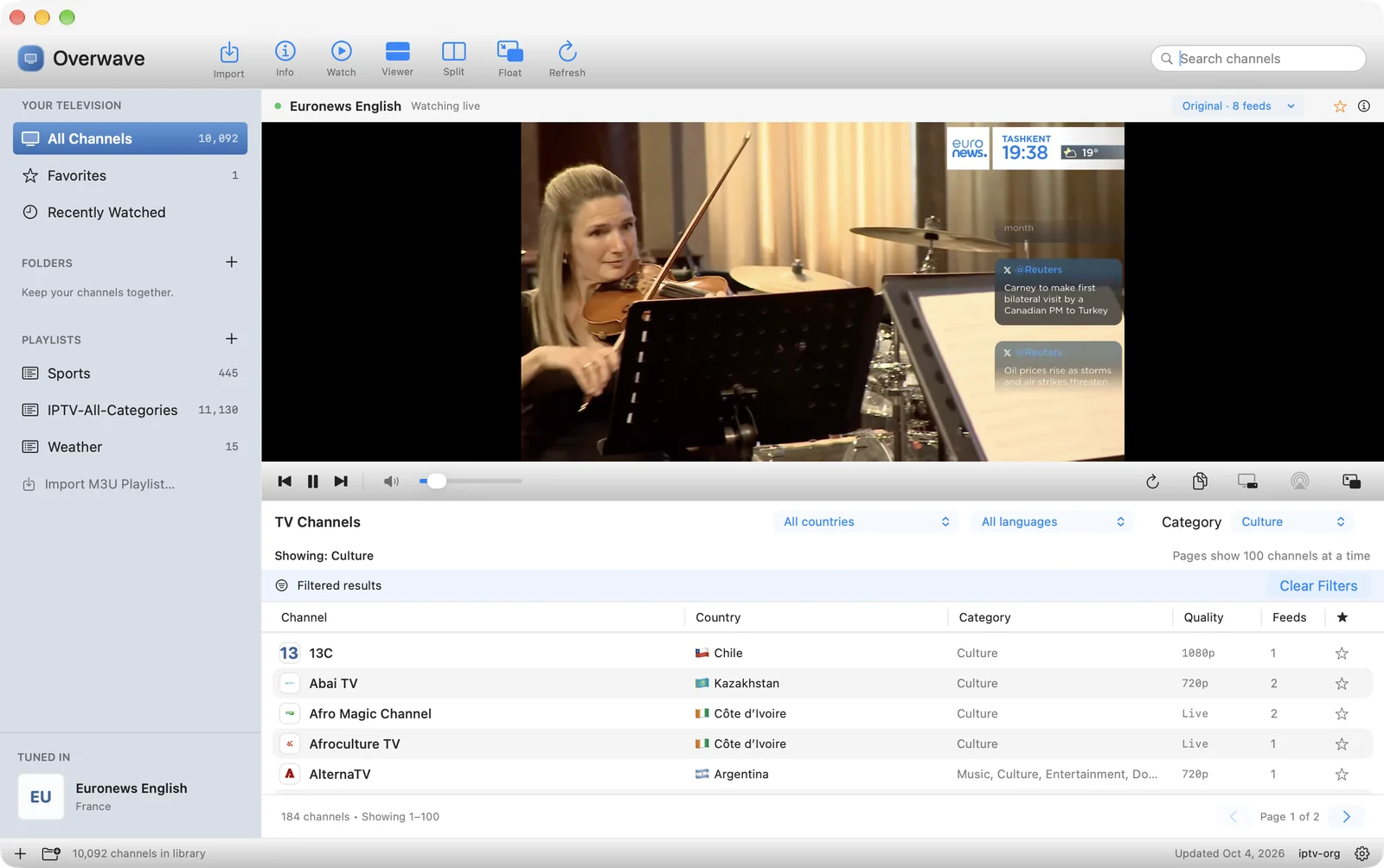
The integrated viewer sits above the channel table with a draggable divider, so playback never leaves view as you browse. Controls sit right beside the video: previous and next, play and pause, volume, reconnect, copy stream URL, Picture in Picture, AirPlay and Float.
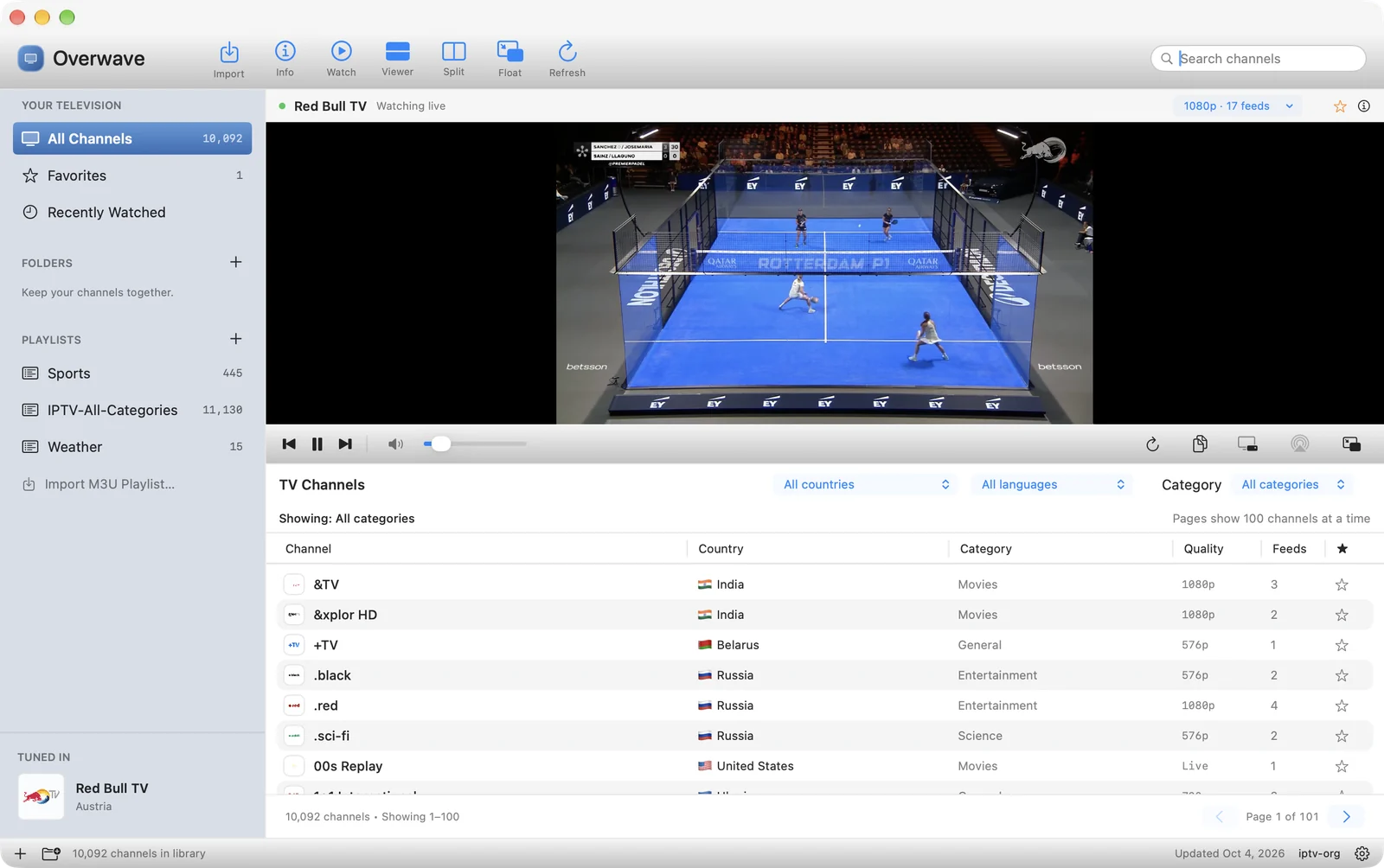
The toolbar and the transport bar keep everything within reach, with an accessibility label on every icon.


| Button | What it does |
|---|---|
| Import | Import an M3U or M3U8 playlist from a file or a web address |
| Info | Show channel details, feeds and stream links |
| Watch | Tune the selected channel |
| Viewer | Show or hide the integrated viewer |
| Split | Watch two channels side by side |
| Float | Move the picture to a floating window above other windows |
| Refresh | Refresh the channel catalogue |
| Reconnect, Copy URL | Reload the stream, or copy its address |
| Picture in Picture, AirPlay | Use the standard macOS picture-in-picture and AirPlay controls |
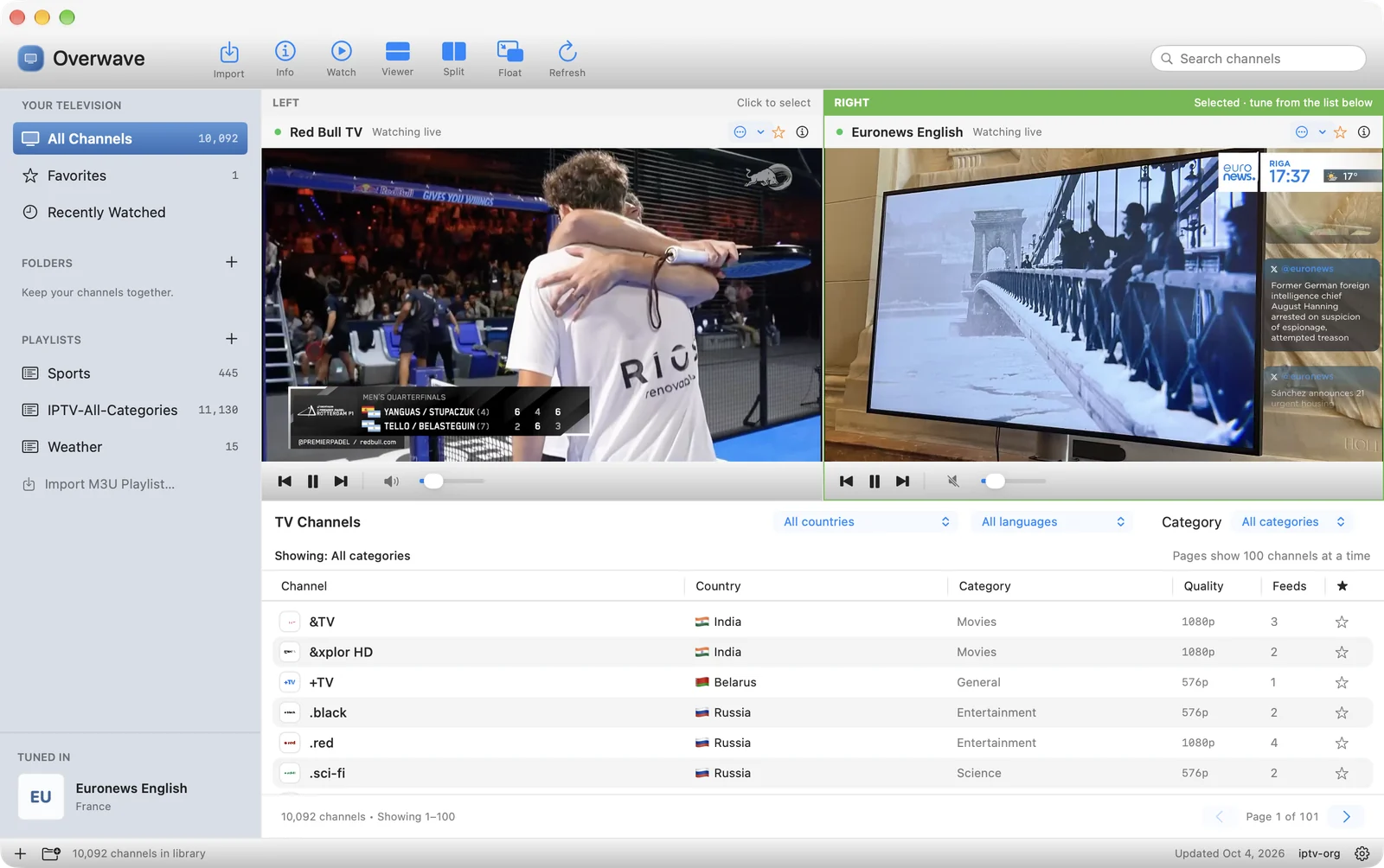
Keep the game on the left and the news on the right. Each viewer has its own transport and volume, and the selected side is highlighted in green. Select a viewer, then double-click a channel in the list to tune that side.
Float moves the picture into a small window that stays above ordinary windows. The main viewer shows “Playing in Float” with a Return to Viewer button, so nothing is lost.
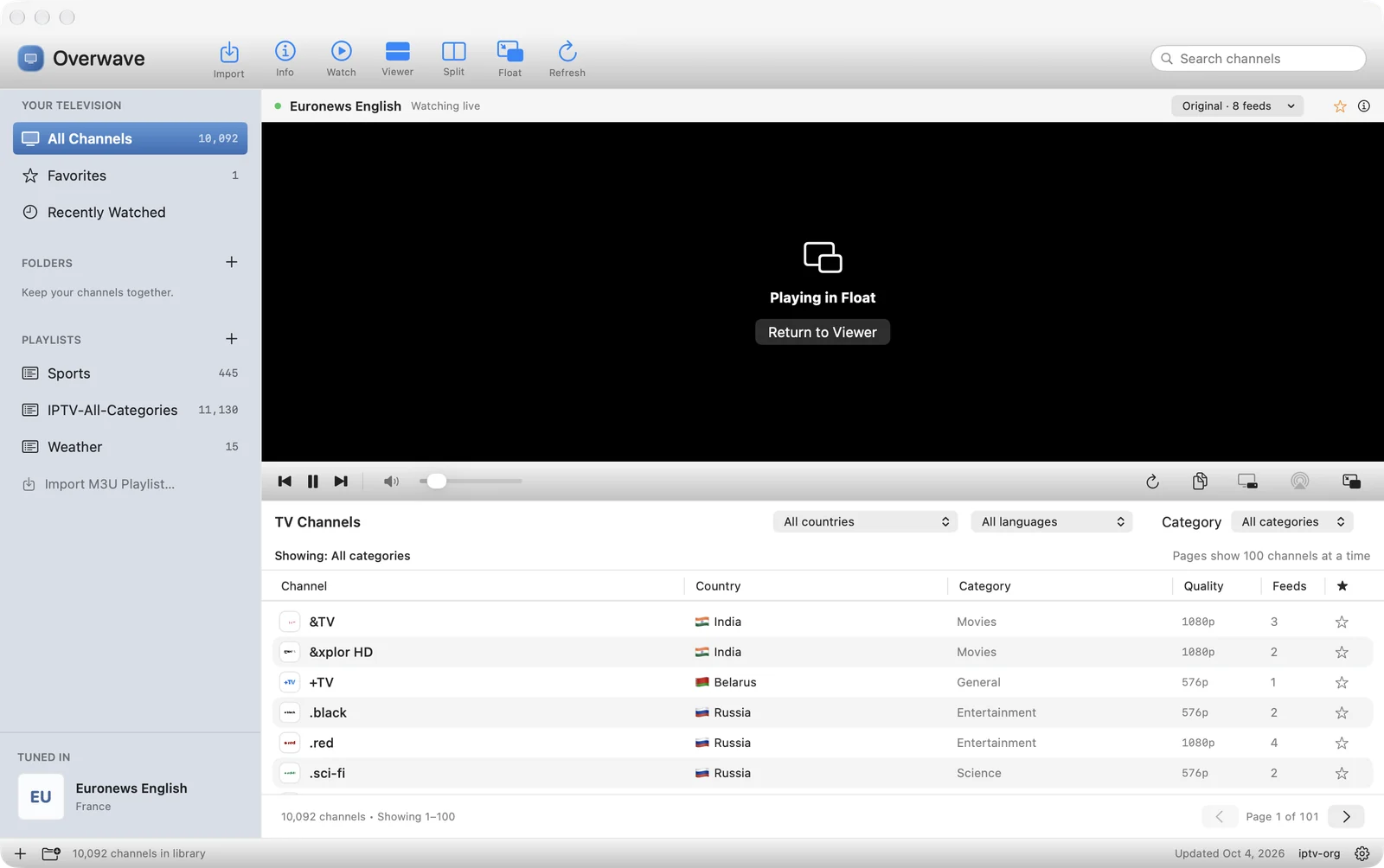

Press ⌥⌘M to float or return the picture. The floating window has its own pause and Picture in Picture buttons.
The blue sidebar keeps your television together: All Channels, Favorites and Recently Watched at the top, your own folders below, and every imported playlist underneath. The Tuned In card at the bottom always shows what's on.

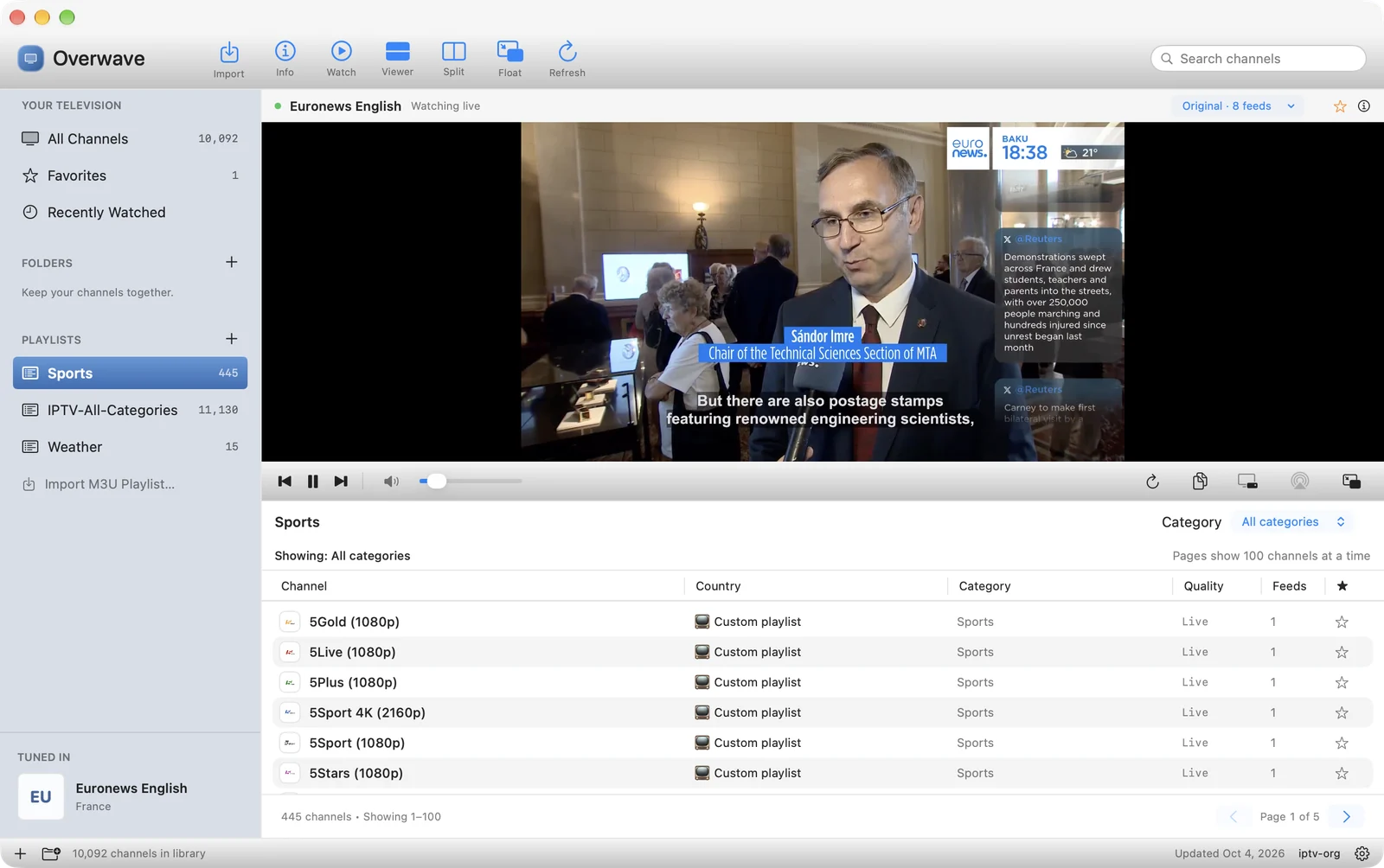
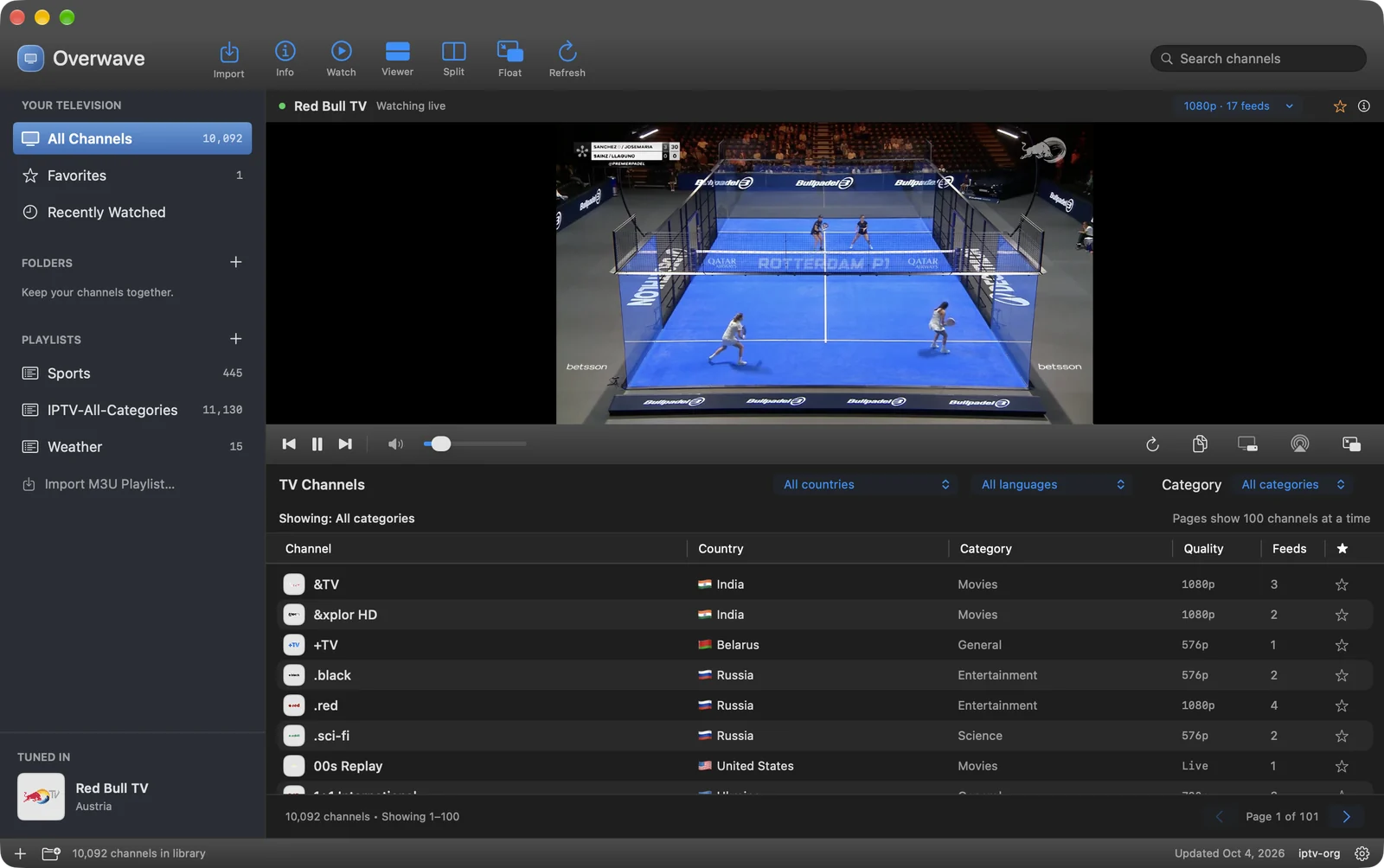
Overwave follows macOS or lets you choose. The video stays center stage in either mode.
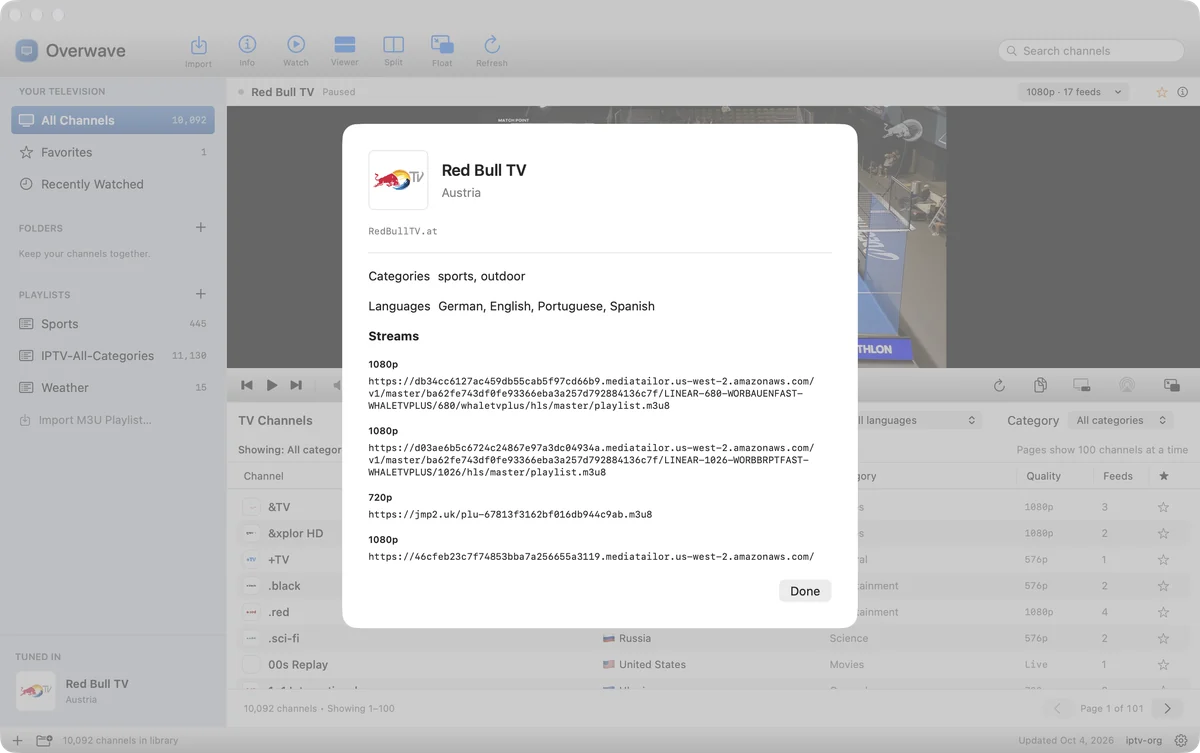
The Info button shows a channel's categories, languages and every feed with its quality and stream address, so you can pick an alternate or copy a URL for another player. Feeds that need custom request headers are marked.
Get the signed, notarized disk image and drag Overwave into Applications.
Search a name, or filter by country, category and language.
Double-click a channel, or select it and press Watch. The viewer tunes it live.
Star favorites, file them into folders, import your own playlist, or split and float the picture.
Overwave is a proper Mac citizen: every icon has an accessibility label, the table is fully keyboard navigable, and the standard macOS player controls handle full screen and Picture in Picture.
| Action | Shortcut |
|---|---|
| Play / pause | ⌘P |
| Import playlist | ⌘O |
| New folder | ⌥⌘N |
| Previous / next channel | ⌘← / ⌘→ |
| Random channel (Take Me Somewhere) | ⇧⌘R |
| Floating TV window | ⌥⌘M |
Float a news channel in the corner while you work, and bring it back when something breaks.
Put the match on the left and another on the right with Split View.
Filter by language and country to find live TV in the language you're studying.
Tune a random channel from another continent and see what the world is watching.
There is no login, no analytics and no telemetry. Your favorites, folders, imported playlists, history and the catalogue cache are saved on your Mac. Streams and logos load directly from their own servers, and the only other connection is the signed update check, which you can switch off.
Developer ID signed with hardened runtime.
Checked and stapled by Apple. Opens like any Mac app.
Signed update feed and signed archives, verified before install.
Overwave is a focused live-TV player. It doesn't record, show an XMLTV programme guide, refresh playlists on a schedule, or play DRM-protected, MPEG-DASH or login-gated streams. Channel availability varies by broadcaster and location.
Built for macOS 14 or newer. Follows light, dark and system appearance.
One universal app for Apple silicon and Intel.
Formats supported by macOS's built-in engine, including HLS (M3U8) streams.
Overwave is a native macOS IPTV player. It bundles a catalogue of thousands of free, publicly listed live TV channels from around the world, plays them in an integrated viewer, and lets you keep favorites, folders and your own imported M3U playlists. It runs on macOS 14 Sonoma or newer, on both Apple silicon and Intel Macs.
The built-in catalogue comes from the community-maintained iptv-org project, which lists publicly available streams. Overwave bundles a snapshot of channels with HTTP or HTTPS streams, and you can refresh it from the toolbar to pick up the latest listings. Overwave is an independent app and is not affiliated with iptv-org or any broadcaster.
No. A channel being listed does not mean its stream is up. Availability depends on the broadcaster, your region and your connection, and community lists change constantly. Many channels offer several feeds, so Overwave lets you choose an alternate stream or reconnect. Streams that need custom request headers are marked, because they require a compatible external player.
Yes. You can download and use Overwave without a payment, account, subscription, ads or trial period. If you enjoy it you can buy the developer a coffee, which is entirely optional and unlocks nothing.
You can import any M3U or M3U8 playlist from a local file or an HTTP/HTTPS address and Overwave keeps it in your sidebar. Imports are snapshots, not live subscriptions, so reimport to update them. Overwave doesn't sell or provide any streams, and DRM-protected streams and provider logins are not supported.
Overwave uses macOS's built-in AVFoundation engine, so it plays the formats and codecs macOS supports, including HLS (M3U8) streams. MPEG-DASH and DRM-protected streams are not supported.
Split View shows two channels side by side, each with its own play, previous/next and volume controls. Click the Split toolbar button, select the left or right viewer, then double-click a channel in the list to tune that side. Click Split again to leave. It can be turned off in Settings.
Float moves the current channel into a small window that stays above ordinary windows, with its own play/pause and Picture in Picture controls. The main viewer shows “Playing in Float” with a Return to Viewer button. The shortcut is Option-Command-M.
AirPlay is built in: use the AirPlay button beside the transport controls to choose a receiver. Overwave also has an experimental Google Cast controller that opens in Google Chrome using Google's Web Sender SDK. It runs on your Mac, so keep Overwave and the controller tab open. Receiver playback can be limited by stream format, CORS and region.
Not at this time. Overwave does not record streams, does not show XMLTV programme guides, and does not refresh playlists on a schedule. It is a fast, simple way to watch live channels.
Yes, adult channels are hidden by default. You can change this in Settings.
Overwave is the new name for Teleliner. Version 0.5.0 renames the app, its menus, Help, Float and the Cast controller. Your playlists, favorites, history and settings carry over, and existing installs keep updating through the same signed Sparkle update feed.
None. There is no account, analytics or telemetry. Favorites, folders, imported playlists, history and the catalogue cache are saved on your Mac. Channel streams and logos load directly from their own servers. See the privacy page for details.
Overwave is made by Hit the Deck Software, a small independent studio building focused, native Mac apps.
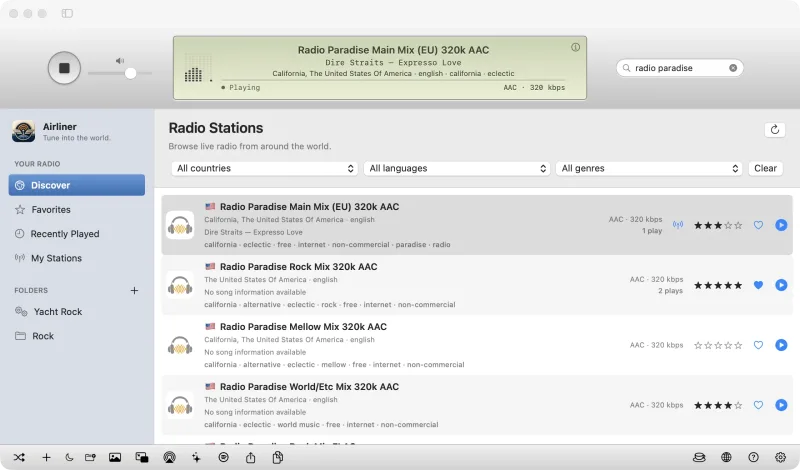
A free native internet radio player for Mac with an iTunes-style LCD, live spectrum and visualizers.
Visit Airliner →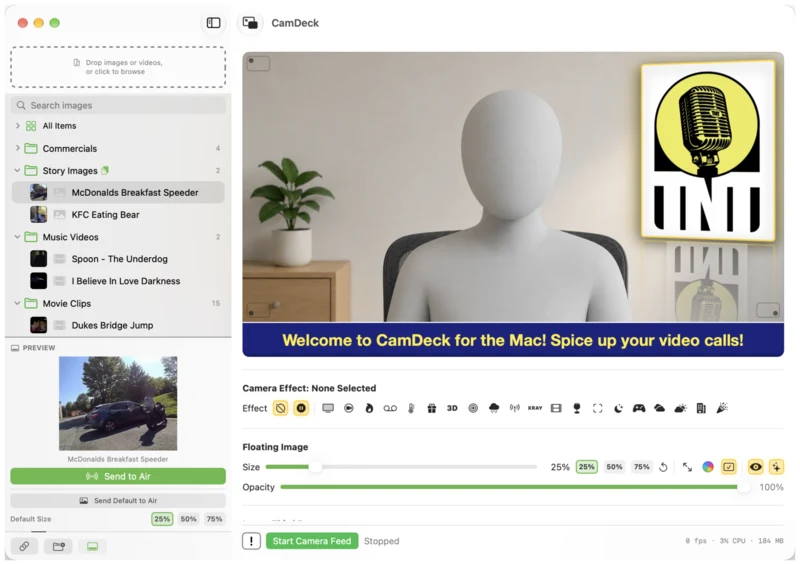
Mac camera effects and virtual camera for Zoom, Google Meet and more, with overlays and lower thirds.
Visit CamDeck →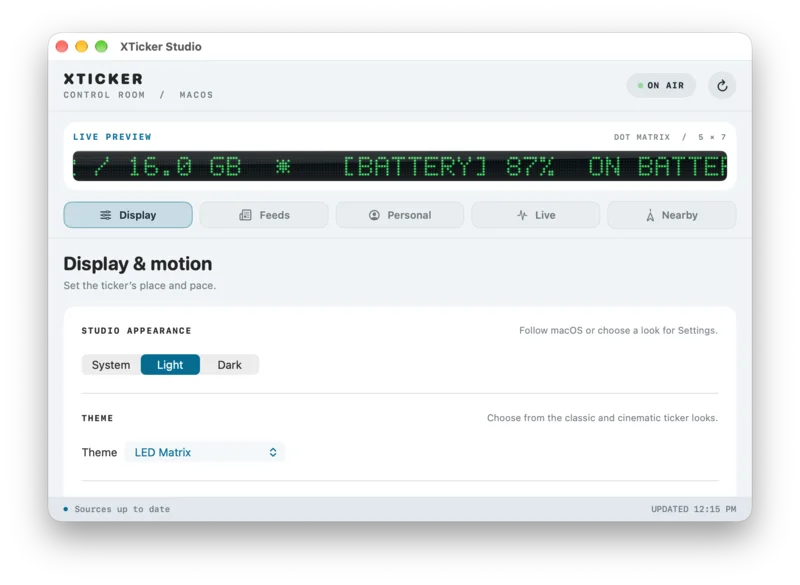
A live LED stock, news and sports ticker that floats above your Mac's Dock or menu bar.
Visit XTicker →Overwave is free to download and use, with no ads, accounts or subscriptions. If it brightens your day, a small tip helps fund continued development and keeps the world on air.